
How to Sort Object Keys Using an Array in Power Automate
How to Sort Object Keys Using an Array in Power Automate
I recently (again) ran into a small but annoying issue in Power Automate, so to spare my future self, I’ll document it here for next time. ;)
A flow generates a Markdown table containing environment settings and publishes it to an Azure DevOps Wiki.
The values had not changed, but the Wiki page was still updated.
It turned out that the order of the settings occasionally changed between runs.
The source data had been converted to XML in the following format:
<root>
    <CopilotStudio_CodeInterpreter>Value...</CopilotStudio_CodeInterpreter>
    <EnableIpBasedStorageAccessSignatureRule>false</EnableIpBasedStorageAccessSignatureRule>
    ...
Each element name represents a setting, while the content of the element contains its value.
The problem was that the generated output depended on the order in which the elements were processed. Since I wanted the resulting Markdown to be deterministic, I needed a way to explicitly sort the setting names before processing them.
The obvious solution was to extract the setting names into an array and sort that array.
First we use a Select action to get the child elements under the root:
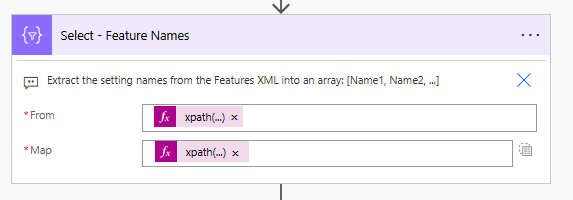
From: xpath( outputs('Compose_-_Features_XML'), '/root/*' )
Map: xpath( item(), 'name(/*)' )
This produces a simple array containing only the setting names:
[
  "CopilotStudio_CodeInterpreter",
  "EnableIpBasedStorageAccessSignatureRule",
  "SomeOtherSetting"
]
The array can then be sorted directly and used as the input to an Apply to each:
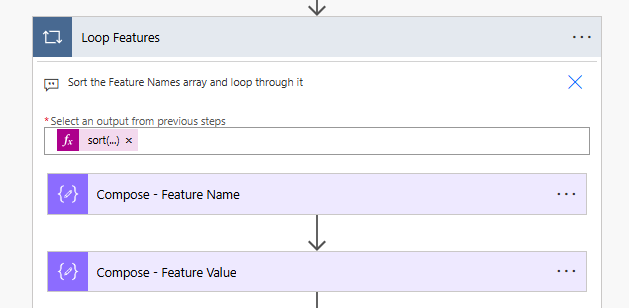
Select output…: sort( body('Select_-_Feature_Names') )
The loop now processes the settings in a stable, alphabetical order.
Inside the loop, the current setting name is simply: item()
The corresponding value can then be read from the original XML by dynamically constructing an XPath expression:
xpath(
  outputs('Compose_-_Features_XML'),
  concat(
    'string(/root/',
    item(),
    ')'
  )
)
For example, when the current item is: CopilotStudio_CodeInterpreter the resulting XPath becomes: string(/root/CopilotStudio_CodeInterpreter).
This returns the value stored in that XML element.
The result is that the generated Markdown table always uses the same ordering.
That avoids unnecessary Wiki updates where the underlying data is unchanged and only the order of the settings differs between runs.
The same pattern applies to JSON objects
Although this example uses XML, the pattern is not specific to XML. A JSON object can contain the same kind of named settings:
{
  "CopilotStudio_CodeInterpreter": "Value...",
  "EnableIpBasedStorageAccessSignatureRule": false,
  "SomeOtherSetting": true
}
For a JSON object, the equivalent steps are to extract its keys, sort them, and use each key to retrieve the original value. For example, the key array can be created with:
keys(outputs('Compose_-_Settings'))
The result can then be sorted with sort(...) and used as the input to an Apply to each. Inside the loop, the current key is item(), and the corresponding value can be retrieved from the original object with:
outputs('Compose_-_Settings')?[item()]
The exact expressions used to extract identifiers and look up values depend on the data format. For XML, XPath is useful for finding element names and values. For JSON objects, use object keys. For arrays of records, sort by a stable property such as a name or ID. The underlying pattern stays the same: identify each item, sort the identifiers, and use them to process or render the original data in a predictable order.
Takeaway
When deterministic output matters in Power Automate, don’t rely on the order in which object properties or XML elements happen to be returned.
Extract the keys or element names into an array, sort the array, and use each name to look up the original value.